How to sign up for Databricks Free Edition and set up your workspace
Language versions: English | 繁體中文(台灣) | 简体中文(大陆)
If you want to learn analytics engineering or modern data tooling without paying for a full cloud setup immediately, Databricks Free Edition is one of the easiest places to start. It gives you a real Databricks environment, serverless capabilities, and enough of the platform to learn the workflow without turning setup into a weekend project.
This guide focuses on the Databricks side only: signing up, getting your workspace ready, finding your way around the interface, and understanding the SQL environment you’ll use later. If your goal is to connect dbt Fusion afterward, this is the post you should do first.
What this guide covers
- Signing up for Databricks Free Edition
- Verifying your account
- Opening your workspace
- Understanding the SQL and workspace areas
- Getting a usable environment ready for follow-up tutorials such as dbt Fusion
What is Databricks Free Edition?
Databricks Free Edition is a no-cost version of Databricks for learners, hobbyists, students, educators, and anyone exploring the platform. Databricks describes it as a serverless-only, quota-limited environment that still lets you work with notebooks, SQL, dashboards, and data workflows.
That makes it a very handy stepping stone. It feels much more like a real data platform than a local throwaway database setup, but without the cost and complexity of a production-grade cloud environment.

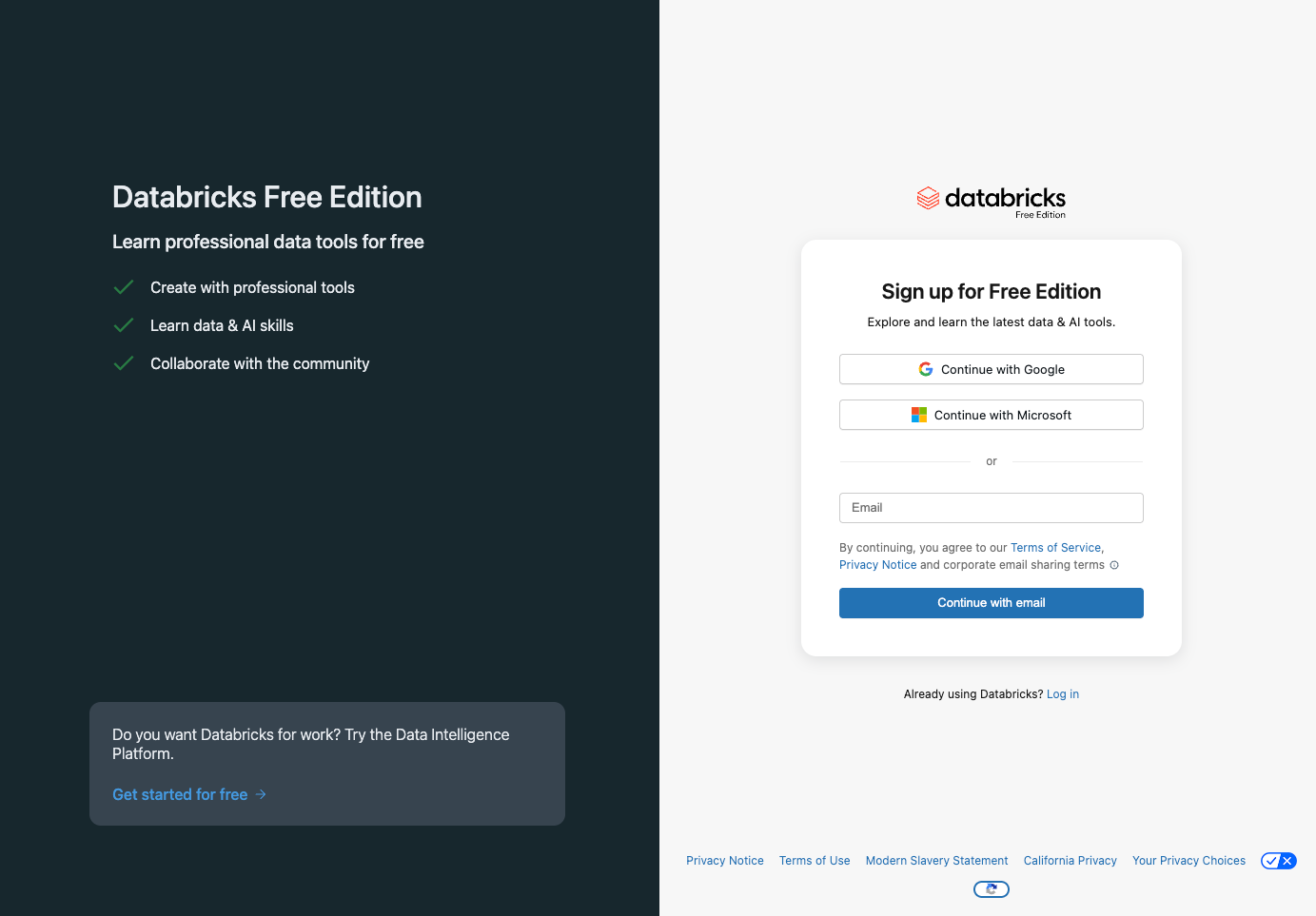
Step 1: Open the official sign-up page
Start from the official Databricks Free Edition signup flow:
https://login.databricks.com/?dbx_source=docs&intent=CE_SIGN_UP
You may also reach this page through the Databricks documentation, but using the direct signup link is the fastest path.
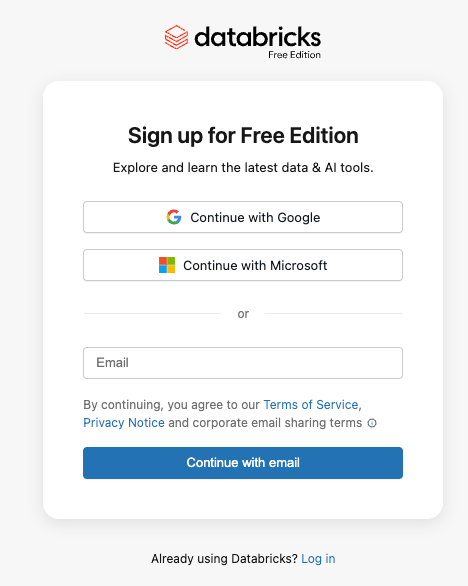
Step 2: Choose how you want to sign up
Depending on your region and current Databricks login flow, you may be offered options such as:
- Email sign-up
- Google sign-in
- Microsoft sign-in
Choose the option that you’re happy to keep using. If you plan to publish tutorials, revisit the workspace later, or build a multi-post learning series, use an account that won’t mysteriously disappear into the fog.
Step 3: Complete verification
After entering your details, Databricks may ask you to verify your email or complete a short confirmation process. Follow the prompts until the account is fully created.
If the email doesn’t show up immediately, check your spam or promotions folders before deciding technology has betrayed you personally.
Step 4: Wait for the workspace to be created
One of the nice things about Free Edition is that Databricks sets up the workspace for you. You do not need to provision your own cloud account or manually create a full enterprise environment just to get started.
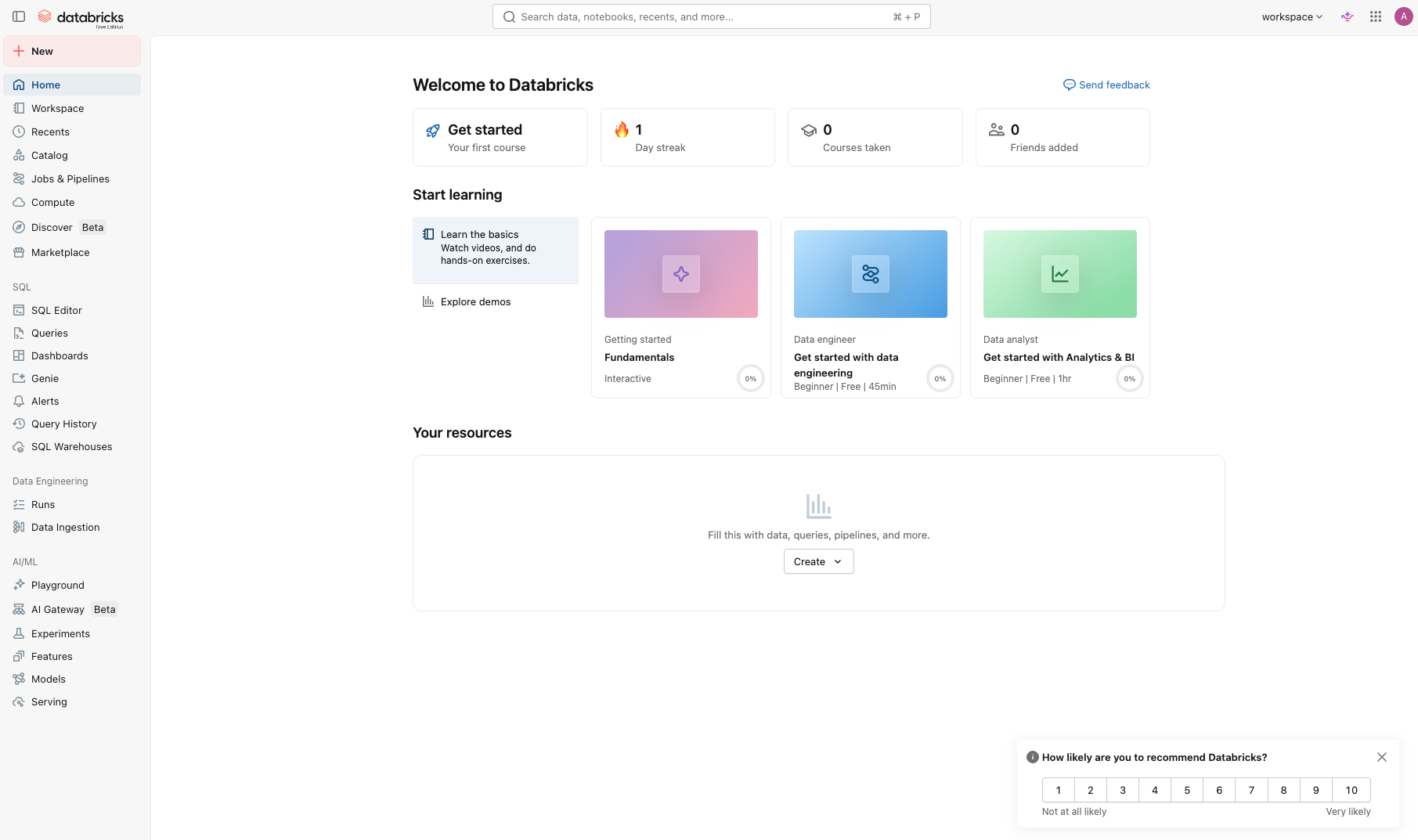
Once setup finishes, you should land inside your Databricks workspace.
Step 5: Understand the main parts of the Databricks interface
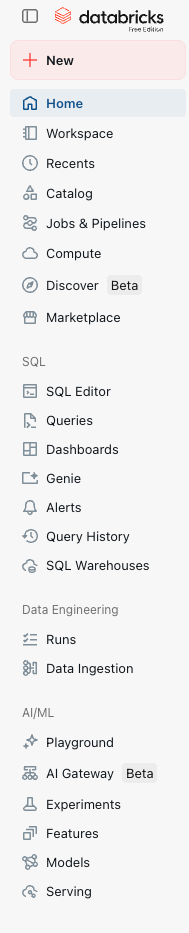
When you first arrive, spend a couple of minutes learning the core areas:
- Workspace for notebooks, files, and project assets
- SQL for querying data and exploring results
- Catalog for schemas, tables, and other data objects
- Dashboards for visual reporting and lightweight exploration
The exact layout can shift over time, but the important thing is understanding the roles each area plays. Later, when you connect dbt Fusion, you’ll care most about the SQL and data object side of the workspace.
Step 6: Get the SQL side ready
For future dbt work, you want to make sure you can actually run SQL in the workspace. In Free Edition, Databricks provides a serverless environment designed for learning, so you do not need to build out a heavyweight infrastructure stack first.
What matters here is that you can:
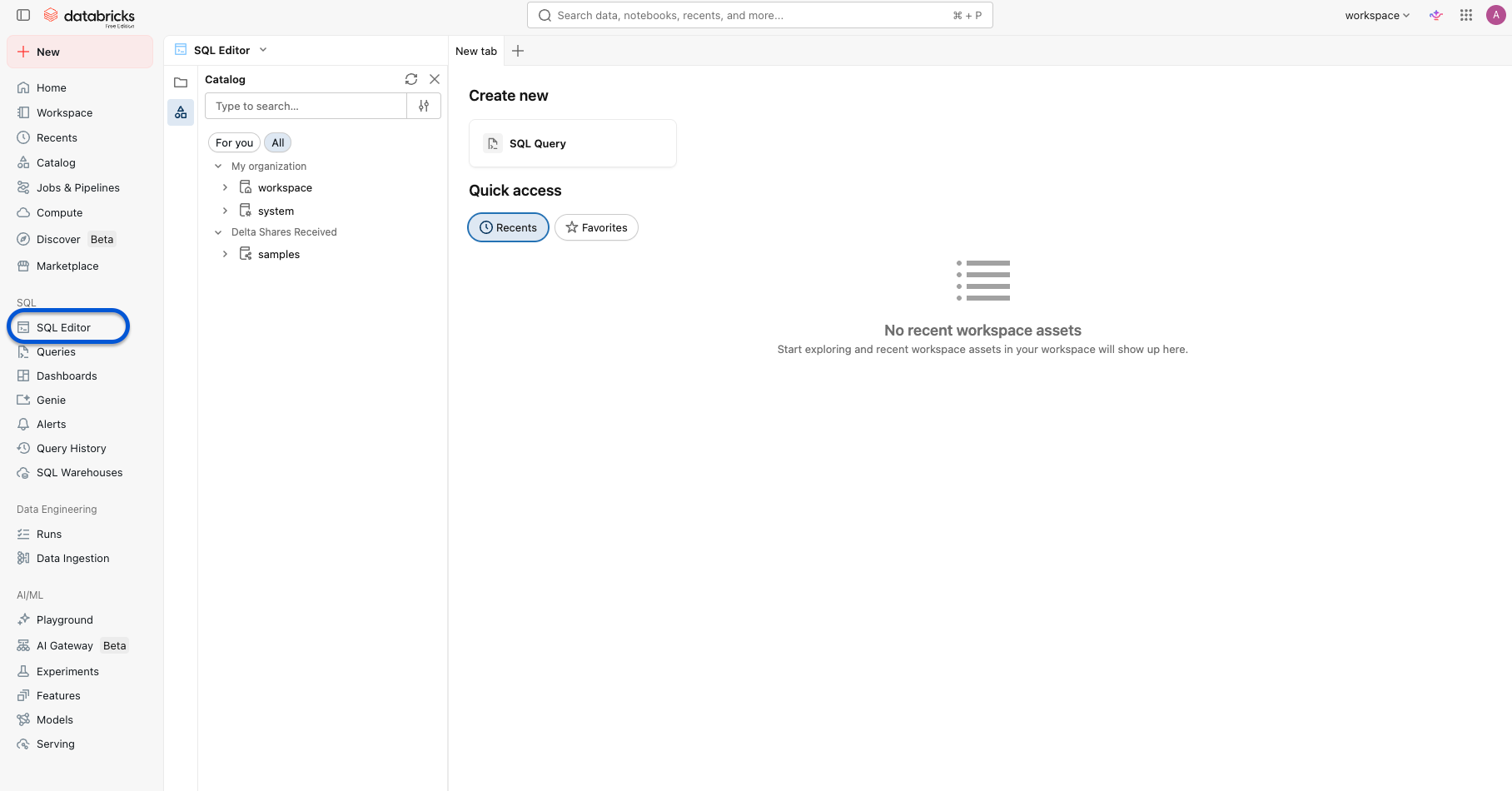
- Open the SQL editor or an equivalent query interface
- Run a simple query
- Create a schema or table for tutorial data later
If your workspace shows a starter SQL environment or a default query area, that is the place to begin. If Databricks exposes a SQL warehouse concept in the current Free Edition interface, note it, start it if needed, and confirm it is available for queries.
Step 7: Run a first test query
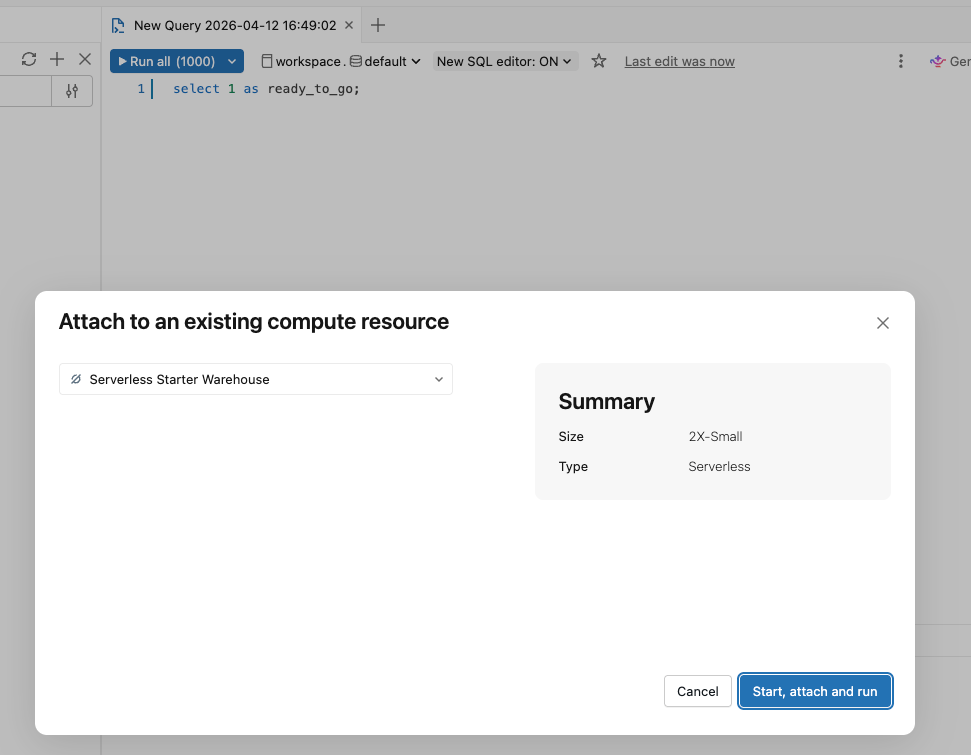
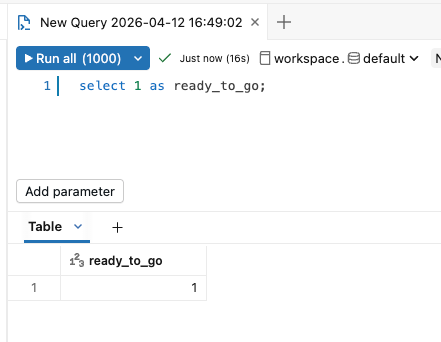
Before doing anything more advanced, make sure the SQL side is alive. A tiny sanity check query is enough:
select 1 as ready_to_go;If that query runs successfully, you know your workspace is ready for basic tutorial work.
Step 8: Create a schema for later tutorials
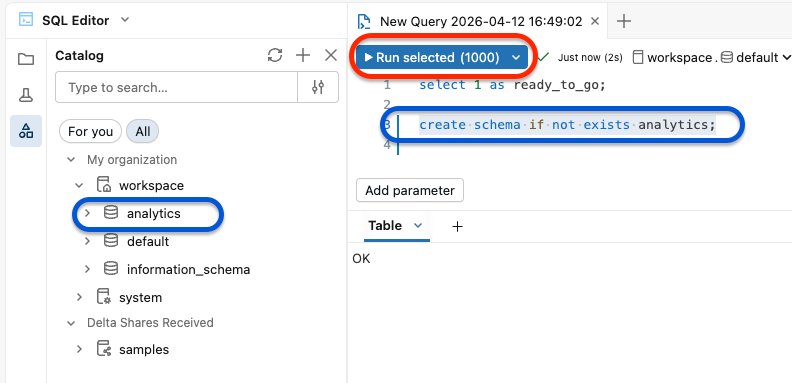
To make the follow-up dbt tutorial easier, create a schema now that you can reuse later:
create schema if not exists analytics;This gives you a clean target location for example tables and dbt models.
Step 9: Optionally create a sample table now
If you want to prepare the environment for the next tutorial immediately, create a tiny table right away:
create or replace table analytics.films as
select * from values
  (1, 'The Matrix', 1999, 'Sci-Fi', 8.7),
  (2, 'Inception', 2010, 'Sci-Fi', 8.8),
  (3, 'The Godfather', 1972, 'Crime', 9.2),
  (4, 'Barbie', 2023, 'Comedy', 6.8),
  (5, 'Mad Max: Fury Road', 2015, 'Action', 8.1)
as films(film_id, title, release_year, genre, imdb_rating);
This is optional, but useful if you want the dbt Fusion article to move faster without re-explaining the Databricks side.
Step 10: Keep note of the connection details you’ll need later
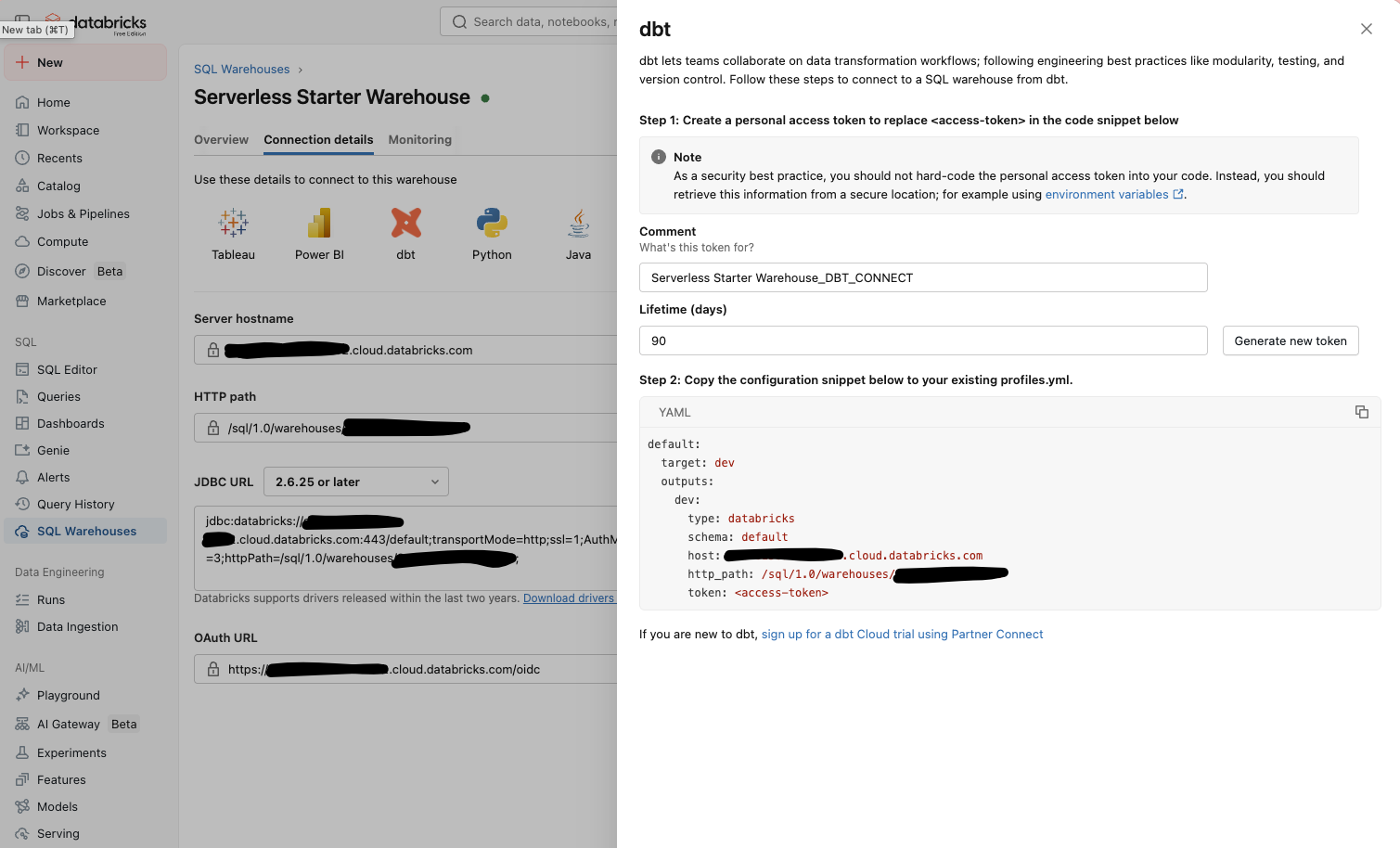
When you later connect dbt Fusion to Databricks, you’ll need the connection details Databricks exposes for your workspace. In practice, the important values usually include:
hosthttp_pathtokenor the auth method your workspace supports- The target catalog and schema you want dbt to use
You do not have to configure dbt in this post, but it is worth understanding now that these details are the bridge between Databricks and your local dbt setup. Go to Compute -> SQL Warehouse -> SQL Starter Warehouse and click dbt:
What to do next
Once your Databricks workspace is ready, the natural next step is to install and configure dbt Fusion and connect it to the Databricks environment you just prepared.
If you’re following this series in order, the next post is:
How to install dbt Fusion with Databricks Free Edition
That tutorial picks up from here and focuses on the dbt side: installation, profiles.yml, connection testing, and building your first model.
Troubleshooting tips
- If the signup flow loops, try a private browser window
- If email verification does not arrive, wait a few minutes and check spam folders
- If the interface looks different from screenshots, rely on the latest navigation labels rather than exact button positions
- If SQL features appear limited, remember that Free Edition is quota-limited and meant for learning rather than production use
Final thoughts
Databricks Free Edition is a strong way to get hands-on with a modern data platform without dealing with the cost and overhead of a full paid cloud deployment. For tutorial work, it is especially useful because it lets you teach a more realistic stack from the start.
If your end goal is learning dbt on Databricks, do this setup once, get comfortable with the workspace, and then move on to the dbt Fusion tutorial. Future-you will be much less annoyed.